
• News
  • About TechGist.ng: Simplifying Tech for All
  • Contact
  • Techgist.ng: Your Source for Nigerian Tech News and Reviews
  • Newsletter
Techgist
  • Tips
  • News
  • A.I
  • Reviews
  • Fintech
  • Programming
  • Naira Fx Rates
Reading: How to Extend the iPhone Battery Lifes
TechgistTechgist
Aa
  • Tips
  • News
  • A.I
  • Reviews
  • Fintech
  • Programming
  • Naira Fx Rates
Search
  • News
  • About TechGist.ng: Simplifying Tech for All
  • Contact
  • Tips
  • News
  • A.I
  • Reviews
  • Fintech
  • Programming
  • Naira Fx Rates
Techgist > Techgist.ng: Your Source for Nigerian Tech News and Reviews > Tips > How to Extend the iPhone Battery Lifes
Tips

How to Extend the iPhone Battery Lifes

Last updated: 2023/08/13 at 11:03 PM
techgist 4 Min Read
Share
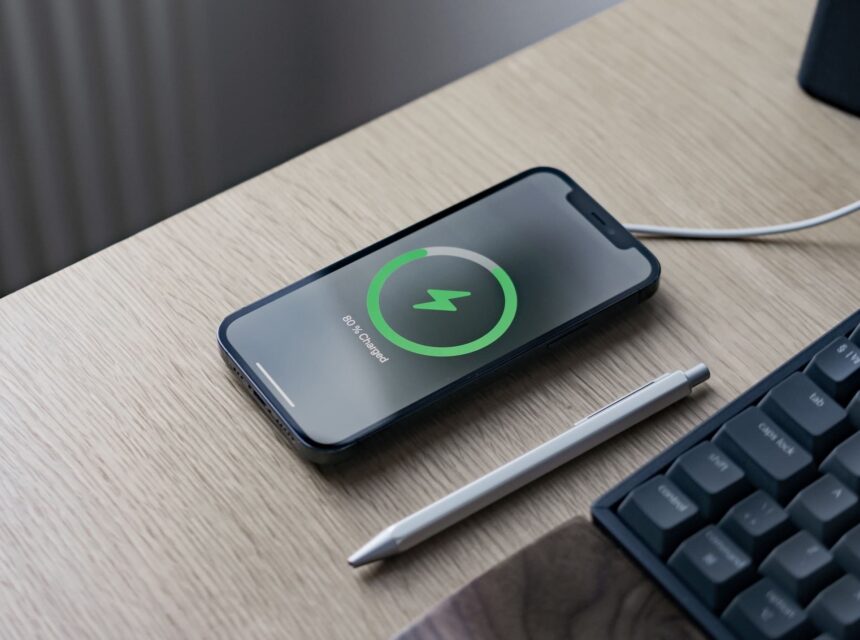
iphone charging

Are you tired of constantly reaching for your iPhone charger because your battery is draining quickly? If so, you’re not alone. Many iPhone users struggle with battery life issues. However, there are several tips and tricks you can use to extend your iPhone’s battery lifespan. In this article, we’ll provide you with actionable tips that can help you improve your iPhone’s battery life and reduce the frequency of charging.

Contents
Adjust Your Screen BrightnessDisable Location ServicesClose Unused AppsDisable Push NotificationsUse Low Power ModeTurn Off VibrationReduce Background App Refresh

Adjust Your Screen Brightness

One of the most effective ways to extend your iPhone’s battery life is to adjust your screen brightness. Here’s how:

  • Lower your screen brightness: The brighter your screen, the more battery it uses. Lowering your screen brightness can significantly extend your battery life.
  • Enable auto-brightness: Enabling the “auto-brightness” feature on your iPhone can help you conserve battery power by automatically adjusting the screen brightness based on the lighting conditions in your environment.
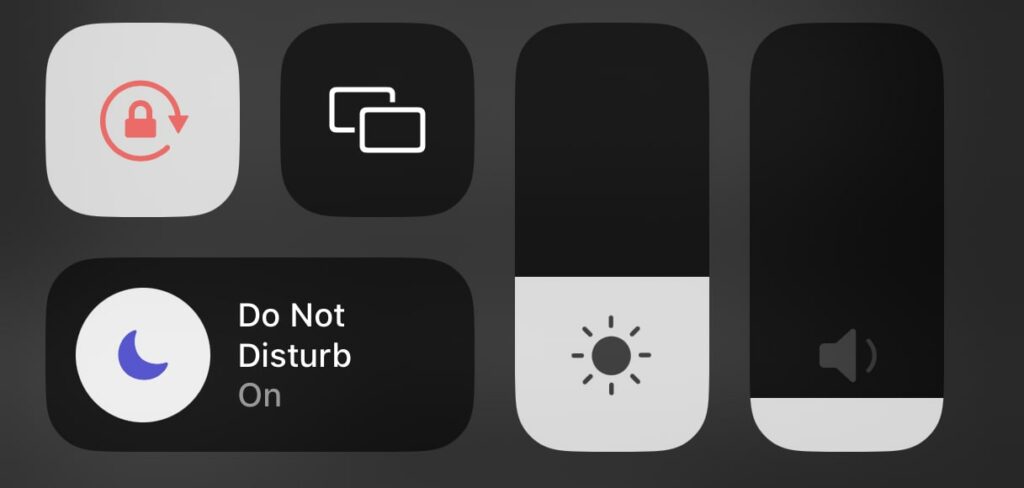
Iphone control center

Disable Location Services

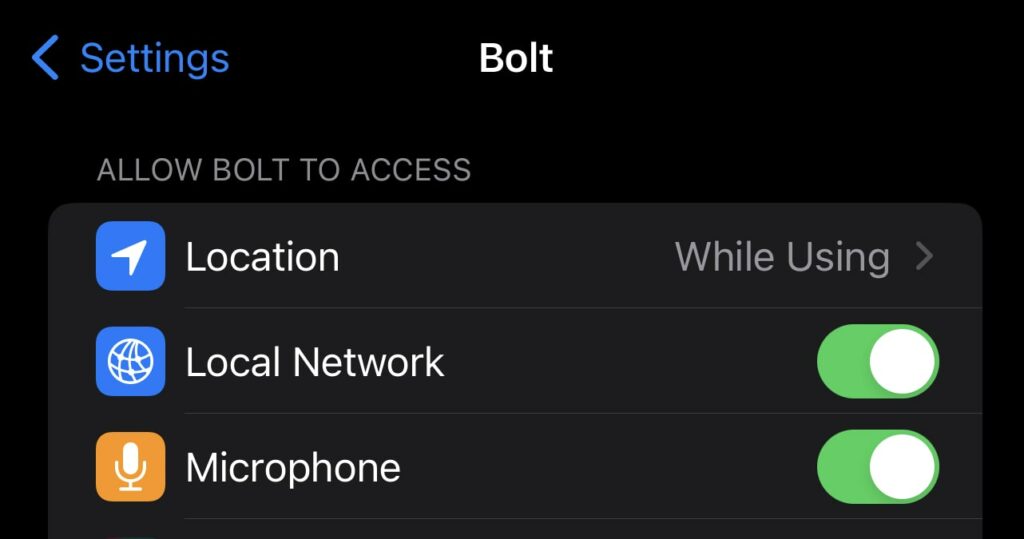
Location services, which allow apps to access your location, can be a significant drain on your iPhone’s battery. Here’s how to disable location services:

  • Disable location services: If you’re not using location-based apps, consider disabling this feature in your iPhone’s settings.
  • Enable location services selectively: You can also choose to enable location services only for specific apps that require it.
Close Unused Apps

Many apps continue to run in the background even after you’ve closed them, consuming valuable battery power. Here’s how to close unused apps:

  • Swipe up to open the app switcher: To close an app, swipe up on the app’s preview card until it disappears from the screen.

Disable Push Notifications

Push notifications, while useful, can also be a battery drain. Here’s how to disable push notifications:

  • Go to Settings > Notifications: From here, you can choose which apps you want to receive push notifications from and disable them for apps you don’t use frequently.
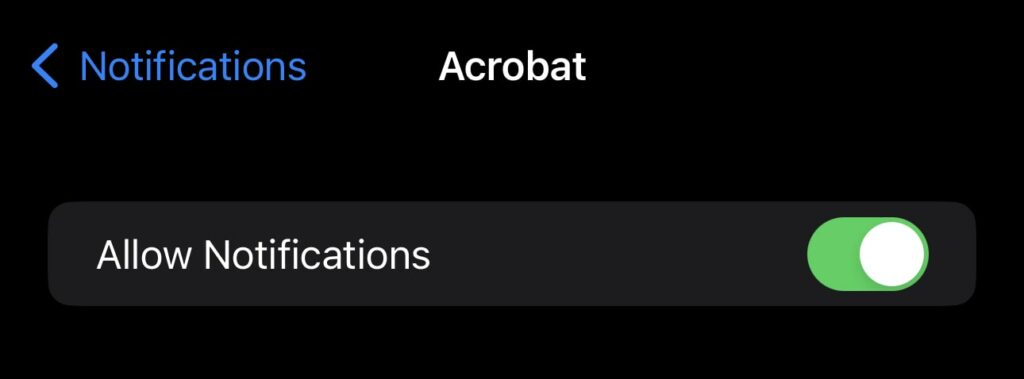
iPhone battery settings

Use Low Power Mode

Low Power Mode is a built-in feature in iOS that can significantly extend your iPhone’s battery life by limiting certain functions. Here’s how to enable Low Power Mode:

  • Go to Settings > Battery > Low Power Mode: Toggle the switch to turn on Low Power Mode.
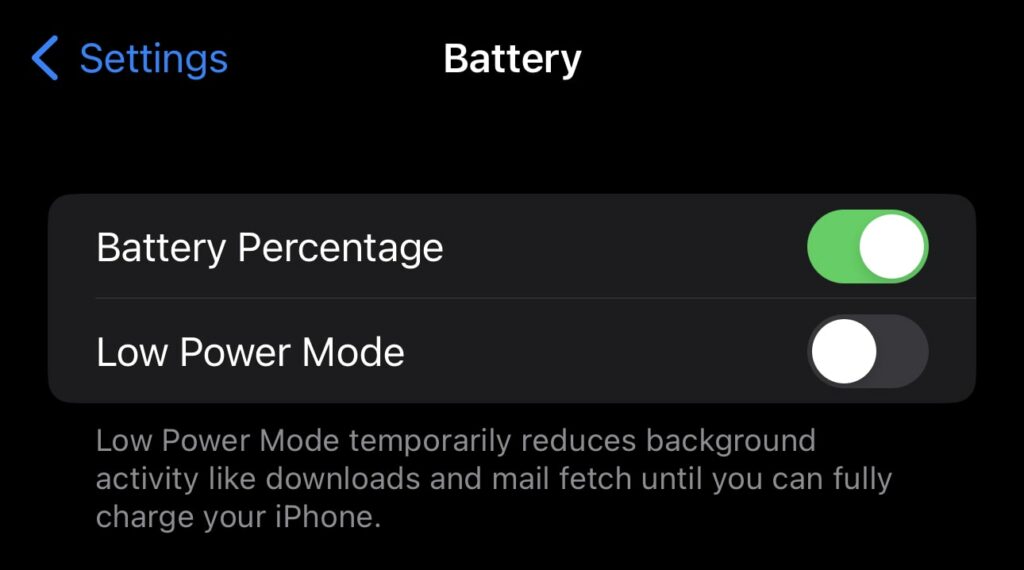
iPhone battery settings

Turn Off Vibration

Vibration is a useful feature that alerts you to incoming calls and notifications, but it can also consume a lot of the iPhone battery life. Here’s how to turn off vibration:

  • Go to Settings > Sounds & Haptics: From here, you can disable system-wide vibration or turn it off for specific alerts.
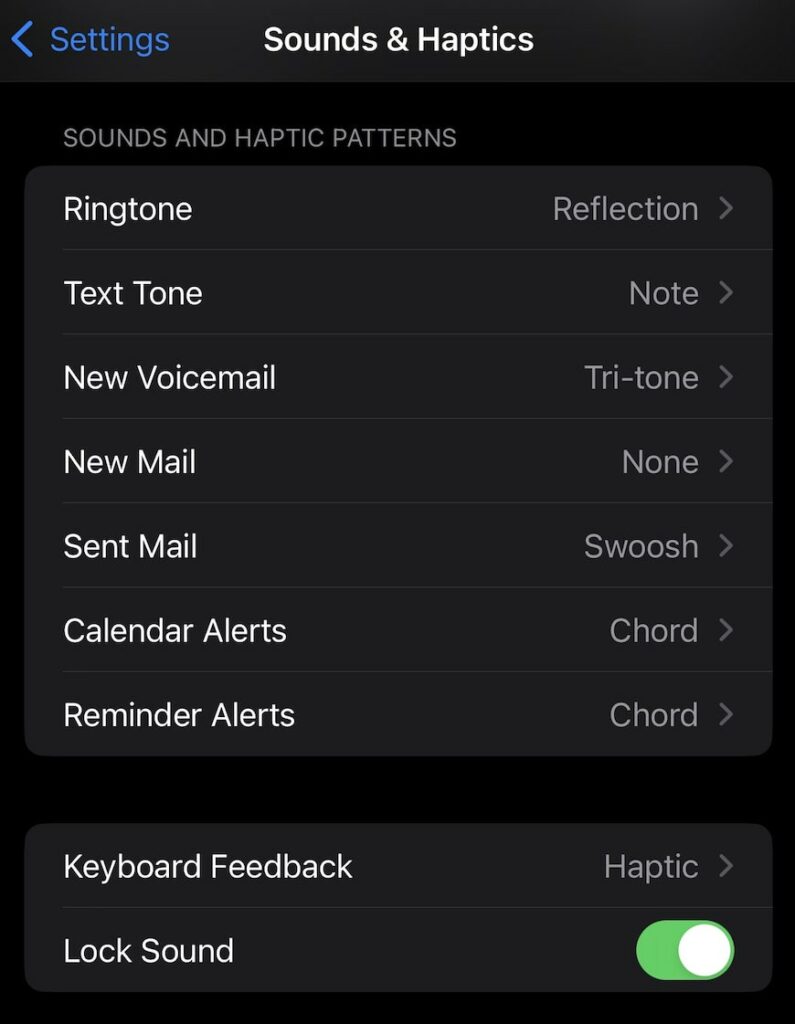
iPhone haptics settings page

Reduce Background App Refresh

Background app refresh is a feature that allows apps to update content in the background. Here’s how to reduce background app refresh:

Go to Settings > General > Background App Refresh: From here, you can choose to disable background app refresh system-wide or for specific apps.
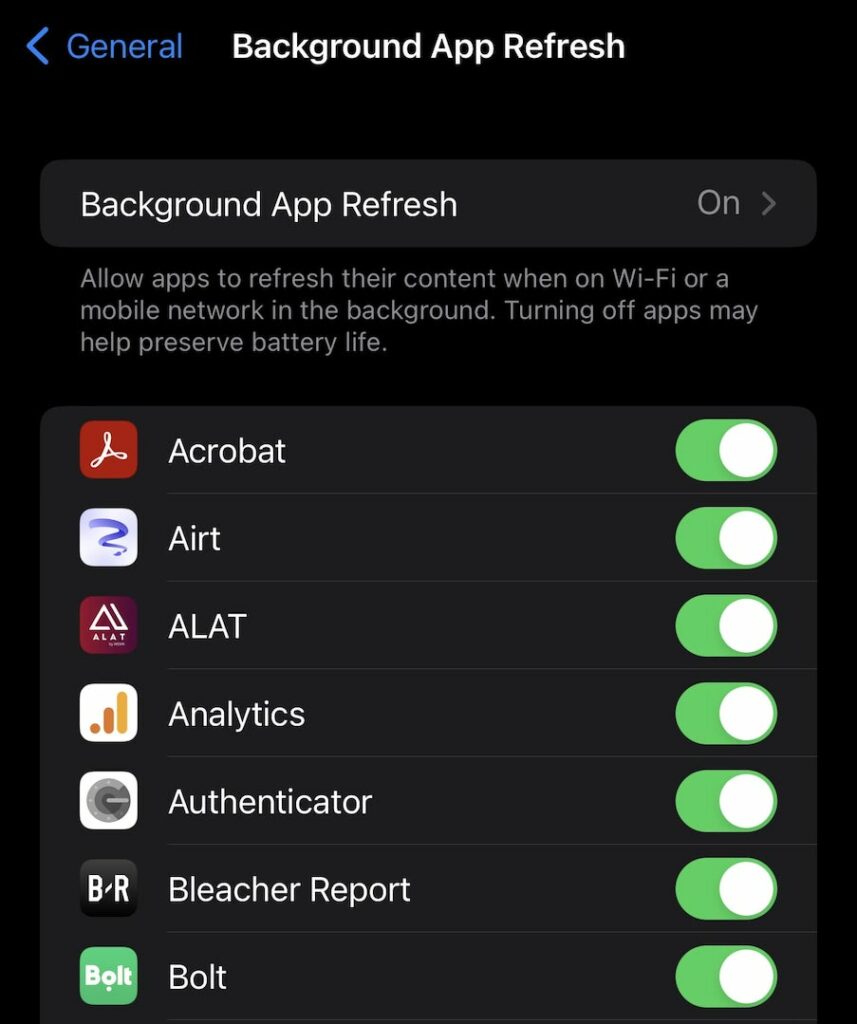
Iphone Background App Refresh  Page

Click here to read our list of top loan apps in Nigeria.

TAGGED: Auto-brightness, Background app refresh, Battery saving tips, Location services, Low Power Mode, Phone battery life, Push notifications, Screen brightness, Upgrade iPhone, Vibration settings
Share this Article
Facebook Twitter Copy Link
Previous Article How to Use the Chipper App to Pay for Netflix, Apple Music, and More in Nigeria
Next Article Nigerian Users Report Payday App Issues: Virtual Card and Customer Support Failure
Leave a comment Leave a comment

Leave a Reply Cancel reply

Your email address will not be published. Required fields are marked *

- Advertisement -

Most Popular

Starlink in Nigeria price and installation

Starlink In Nigeria Price and Installation.

By techgist
jayz-ai-generated-art-1

AI in Music: Viral Song Featuring Jay-Z’s AI-Generated Voice in Latest Song

By techgist

How to Use the Chipper App to Pay for Netflix, Apple Music, and More in Nigeria

By techgist

You Might Also Like

Must-Have Alert: The Gadgets Every Tech Bro and Sis Needs Right Now!
ReviewTips

Must-Have Alert: The Gadgets Every Tech Bro and Sis Needs Right Now!

7 months ago
ReviewTips

Beyond iPhone vs Samsung: Uncovering the Best Budget Phones from Vivo, Oppo, and Redmi

7 months ago
Infographic illustrating the impact of Nigeria's data bundle tariff hike on Nigerians, showing a significant increase in cost and decrease in data affordability.
NewsTips

The 2025 Data Price Shock: How Nigerians Can Cope with Rising Mobile Tariffs

9 months ago
AI generated picture of Trump
FintechNewsTips

The Trump Effect: How Funding Cuts Threaten Africa’s Health and Tech Progress

9 months ago
  • Tips
  • News
  • A.I
  • Reviews
  • Fintech
  • Programming
  • Naira Fx Rates

© COPYRIGHT TECHGIST 2023

Welcome Back!

Sign in to your account

Lost your password?